KRAFTSHIFT
User guide
KRAFTSHIFT is your coach for strength training at the gym. Tell it how much time you have – the app plans the right machines, suggests the weight and learns from every workout. This guide walks you through every feature step by step. The pictures come from a demo account with made-up training data.
Getting started
Create your account
KRAFTSHIFT starts with a waitlist. Sign up on the waitlist with your email address and confirm the link in the email. As soon as a place is free, you receive an invitation. Use the link in the invitation to create your account: name, password (at least 10 characters) and confirmation that you are at least 16 years old and have read the usage notice. After that you are signed in straight away.
The first three questions
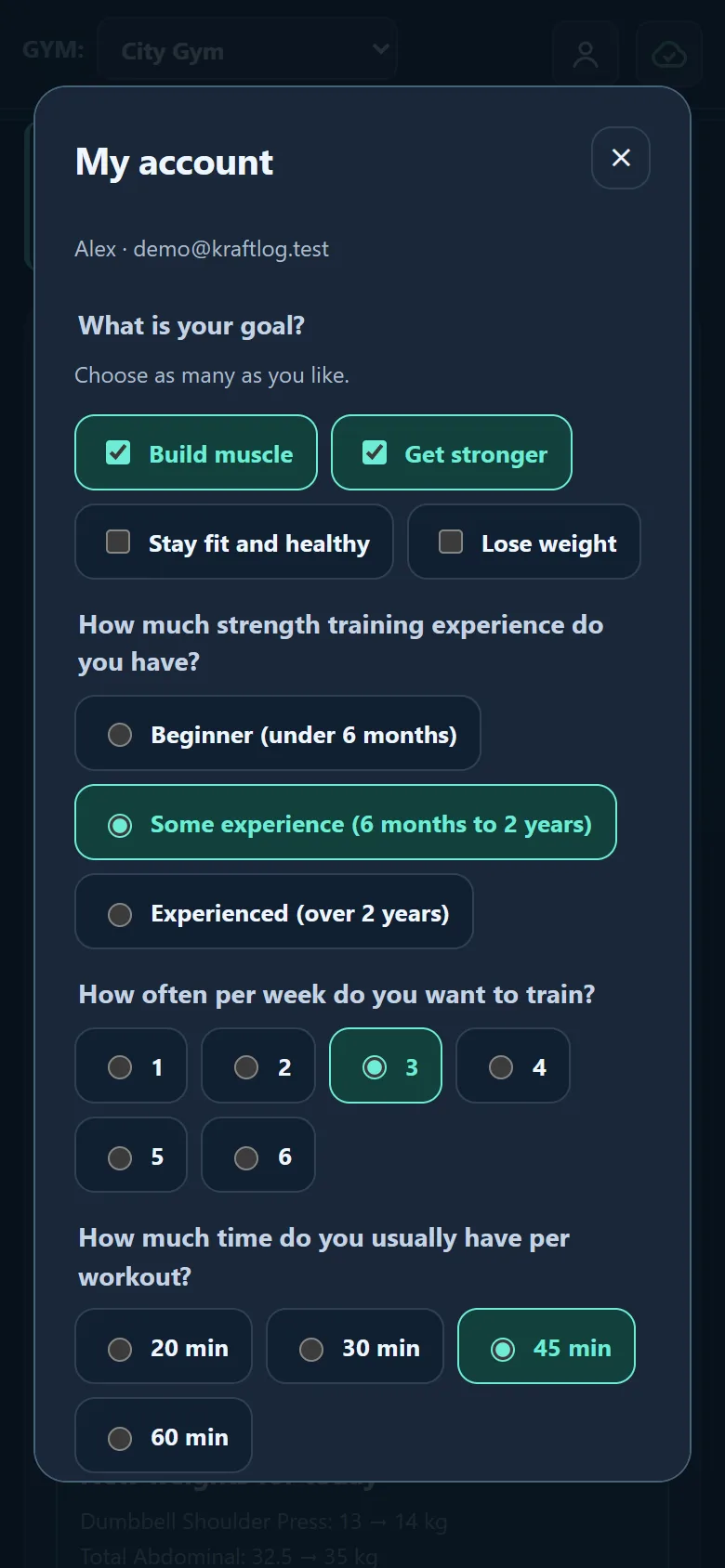
On first start, KRAFTSHIFT asks in three short steps about your goal, your experience, your training days and your gym. Everything is optional – “Later” skips the questions. Your answers help the app with starting values (for example your training time) and goal suggestions. You can change them at any time under “My account”.
Install KRAFTSHIFT as an app
KRAFTSHIFT runs in the browser and can be added to your home screen like an app:
- iPhone (Safari): Share icon → “Add to Home Screen”.
- Android (Chrome): Menu ⋮ → “Install app” or “Add to home screen”.
- Computer (Chrome, Edge): Install icon in the address bar.
KRAFTSHIFT then opens without the browser bar and also works without a connection (see “Training without a connection”).
How the app is organised
At the top you see the bar with your gym, the person icon (menu) and the save icon (cloud). Below are the four sections Workout, Exercises, Log and Progress.
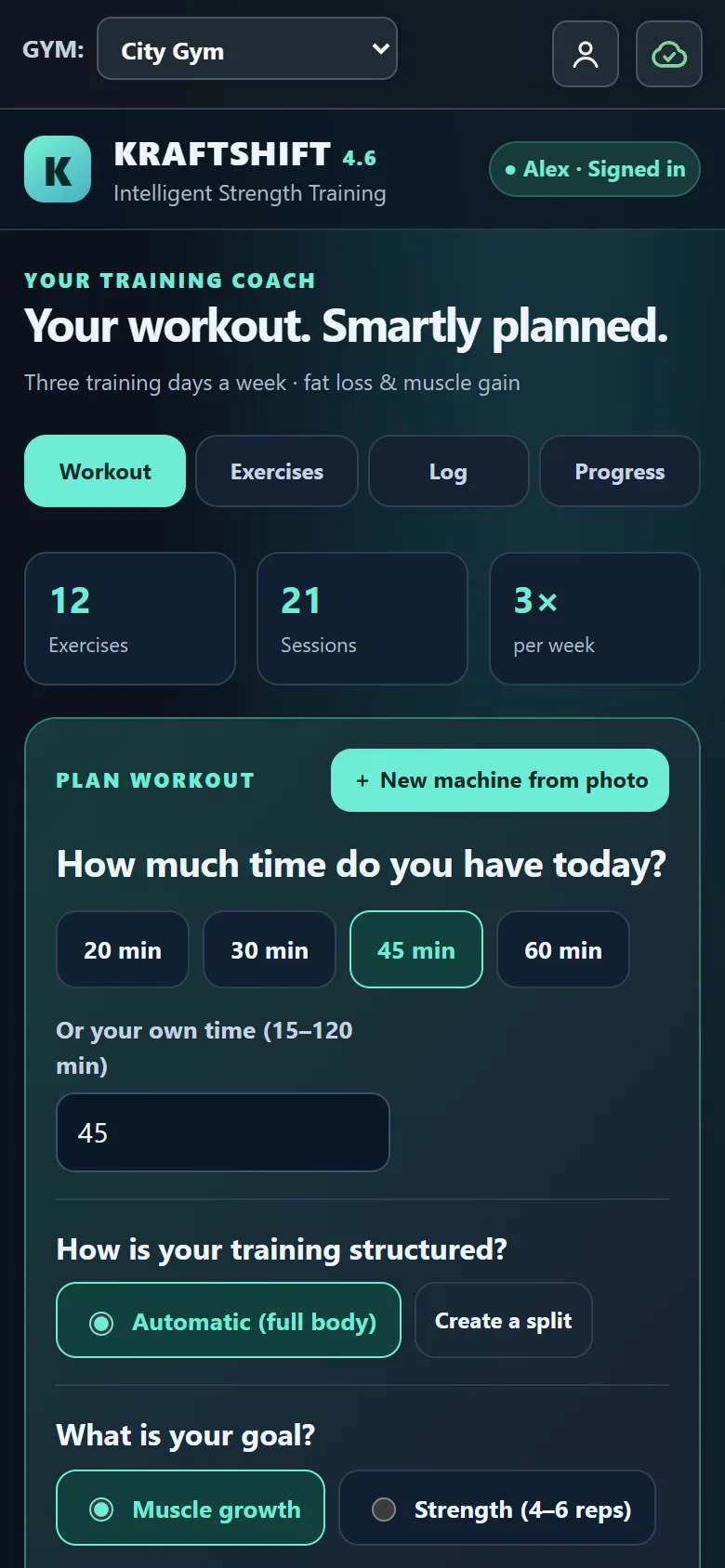
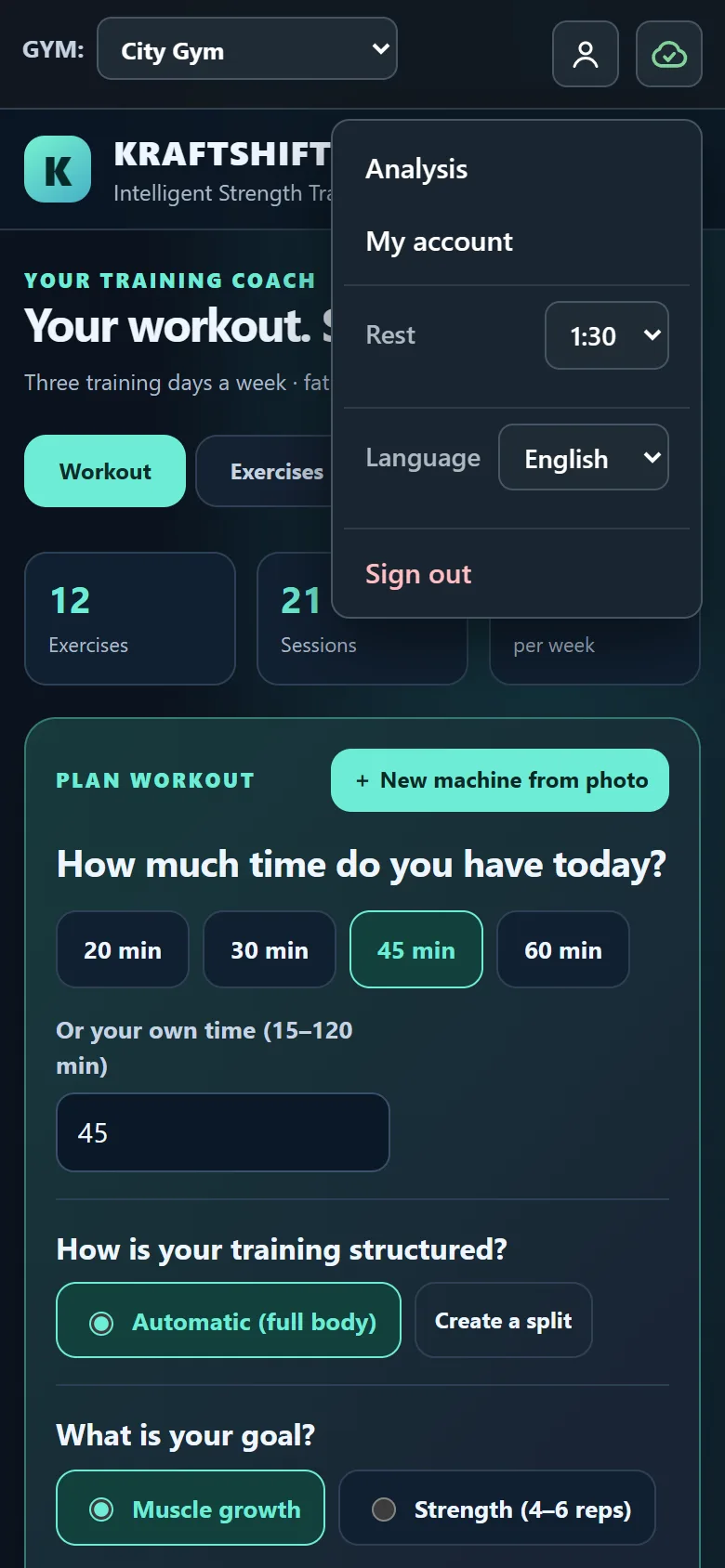
Tapping the person icon opens the menu with Analysis, My account, the rest between sets, the language and Sign out.
The cloud shows whether everything is saved: green = saved, yellow = saving, red = problem, crossed out = offline. Tap it to see the details.
Planning a workout
How much time do you have today?
Choose 20, 30, 45 or 60 minutes or enter your own time (15–120 minutes). KRAFTSHIFT plans as many machines as fit into that time. At first the app uses a typical value per machine; once you have saved workouts with measured times, it uses your real times – per exercise, including the change between machines.
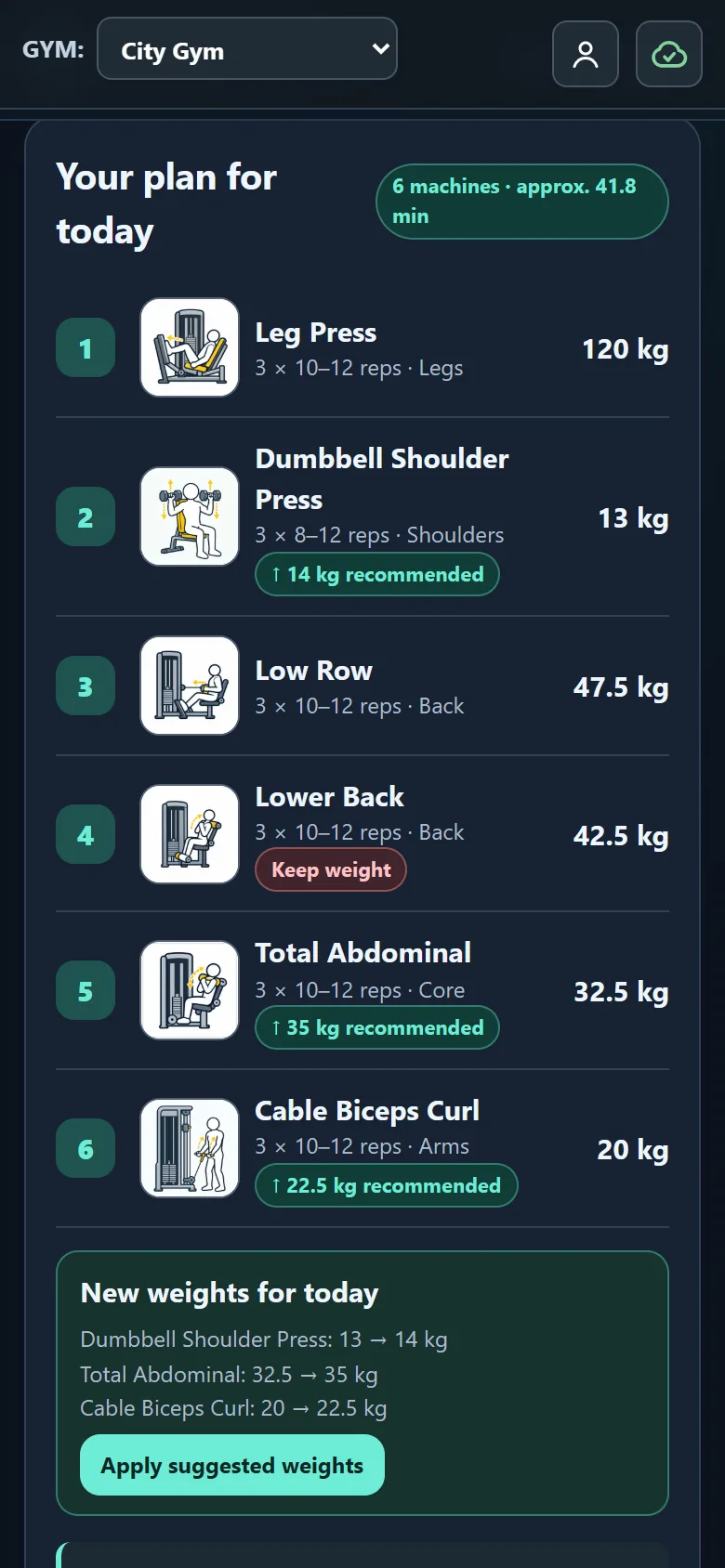
Each line of the plan shows the machine, sets and reps, the muscle group and the suggested weight. When a machine is ready for more weight, you see it right in the plan and can accept the increase for all machines at once.
Who picks the machines?
- “You choose for me” (automatic): KRAFTSHIFT builds a full-body workout – first one machine each for legs, pushing and pulling, then by priority. Machines you have not used for a while move up; what you trained today or very often moves down.
- “I'll pick the machines”: You tick the machines yourself; the app orders them and checks what fits into your time.
Split training
Under “How is your training structured?”, “Create a split” sets up a plan from a template: Push/Pull/Legs, Upper/Lower or Full body A/B. Each day has its muscle groups; you can add or remove machines per day and rename the days.
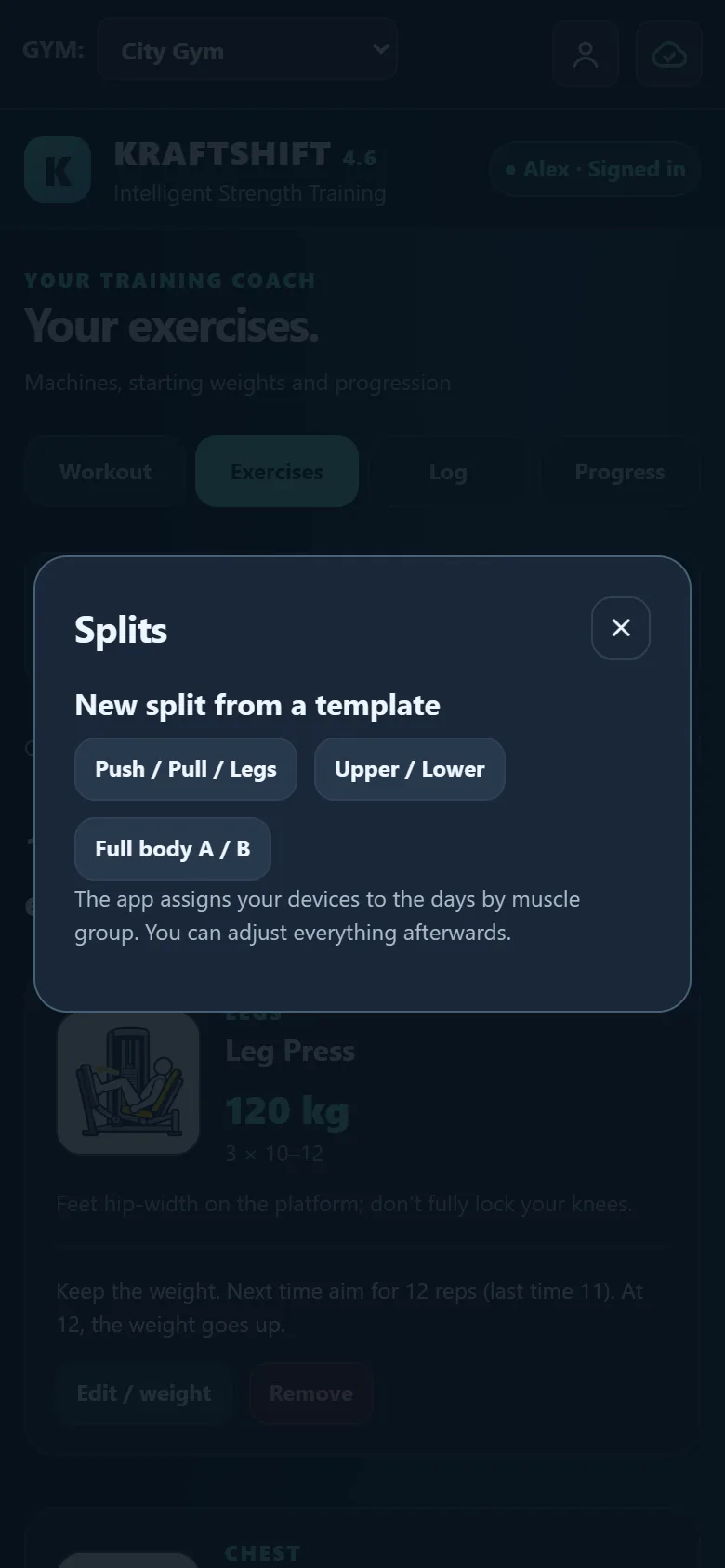
KRAFTSHIFT always suggests the day after the one you trained last. Before you start you can pick a different day. Your time budget applies to splits too.
Goal: muscle or strength
- Muscle building (default): 10–12 reps, 3 sets, 90 seconds rest.
- Strength: 4–6 reps, 4 sets, 3 minutes rest, heavier weight.
KRAFTSHIFT stores strength weights separately. If you do not have one yet, the app estimates it from your previous weight (via the estimated one-rep max). Because strength sets have longer rests, the app plans more time per machine.
During the workout
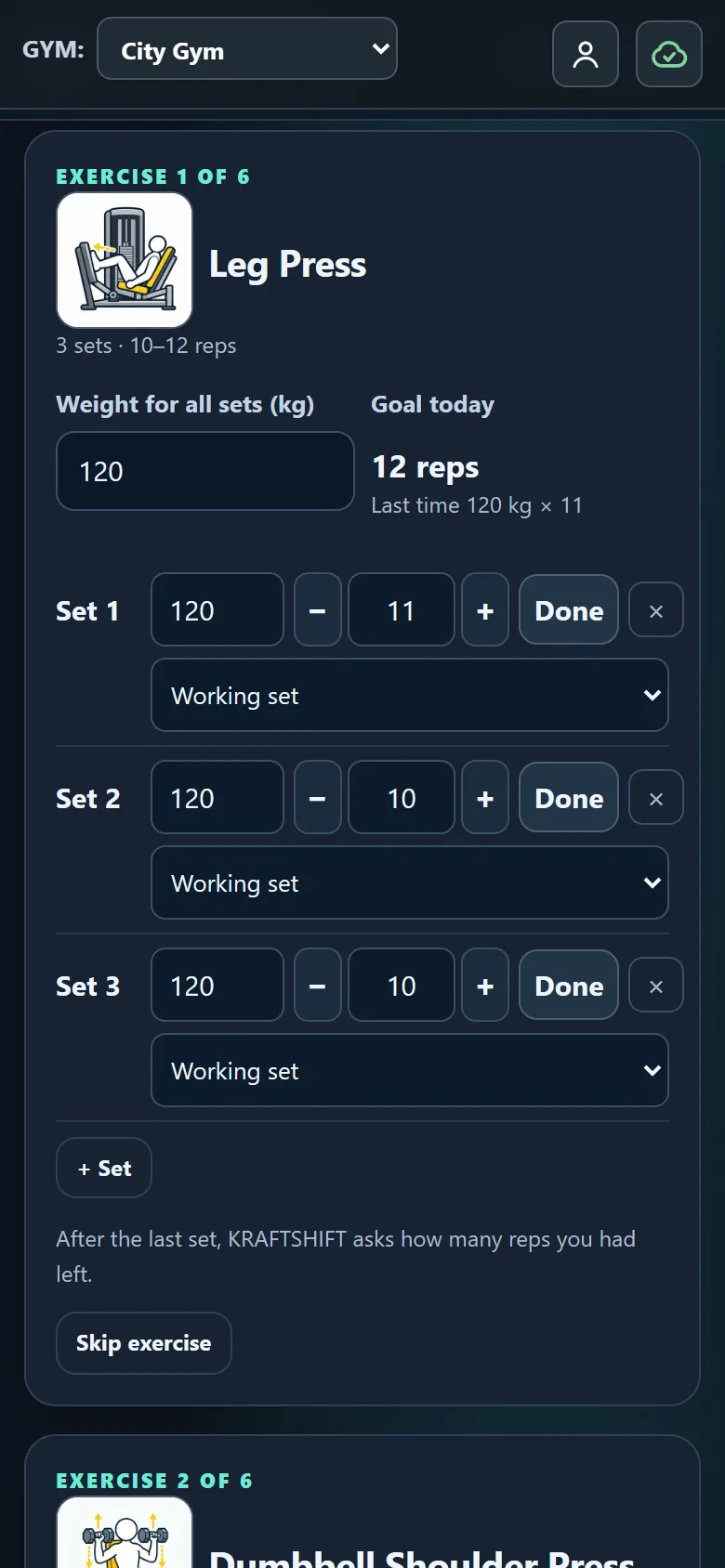
Start with “Start this workout”. At the top you see the start time, planned and elapsed minutes and a progress bar.
Logging sets
The planned sets are ready for every machine. Enter weight and reps and tap “Done” – the set is ticked off. You can change the weight for all sets at the top or for each set individually.
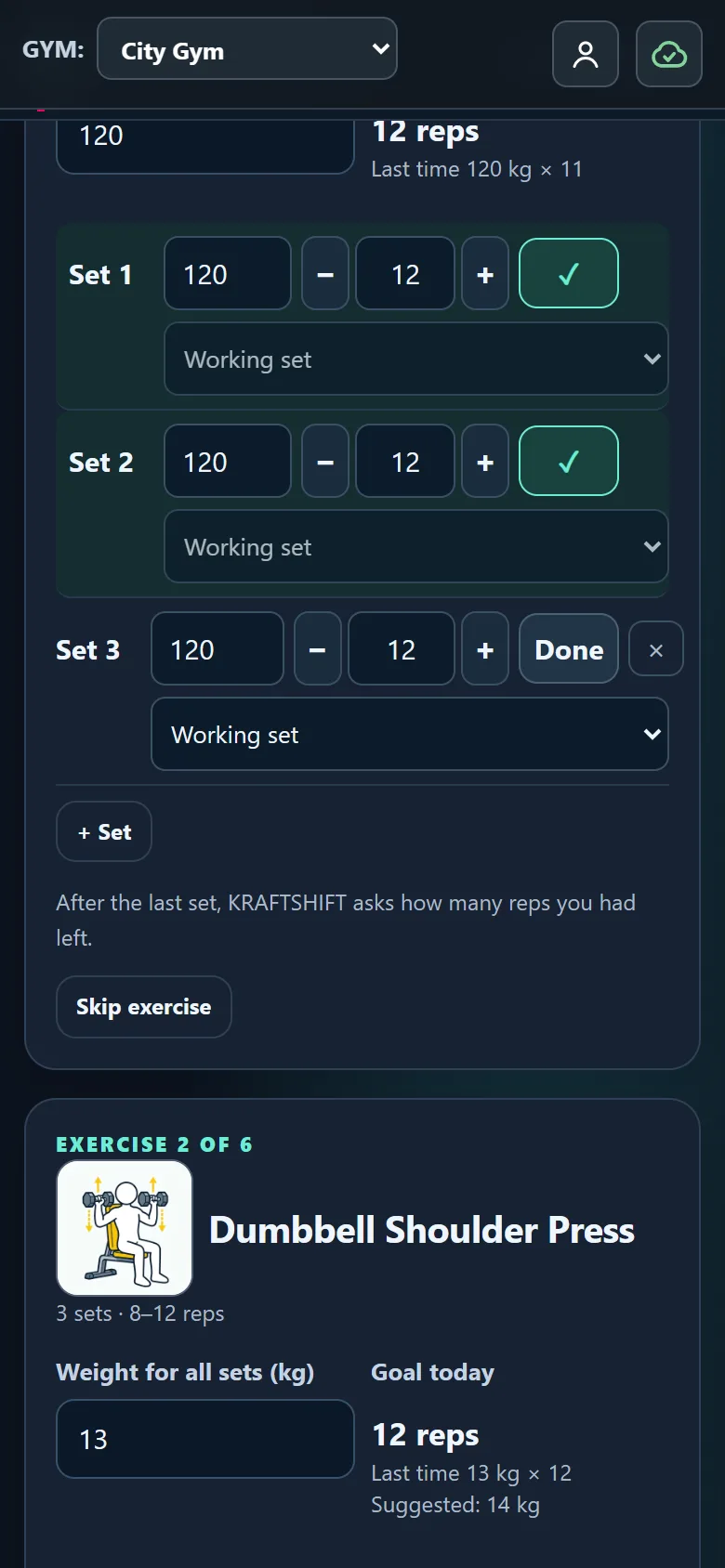
- Set type: warm-up, working set, drop set or to failure. Only working sets and sets to failure count for progression.
- “+ Set” adds another set (up to 20), × removes a set that is not ticked off yet.
- “Skip exercise” when a machine is taken or you want to leave it out today.
Rest timer
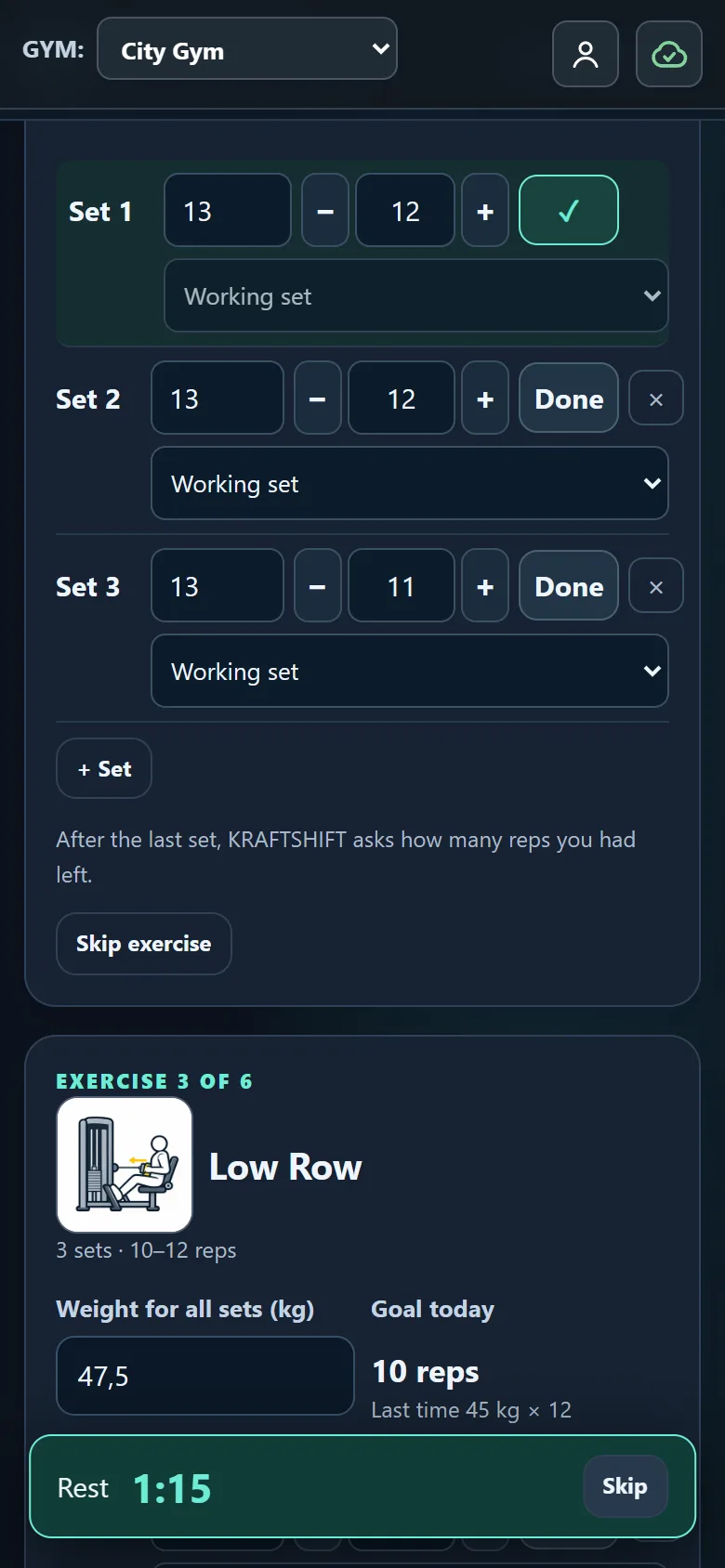
After each completed set the rest timer starts with the machine's rest time (adjustable per machine). “Skip” ends the rest early. Set the default rest (initially 1:30) in the person menu under Rest; it then applies to all machines.
How did it feel?
After the last set KRAFTSHIFT asks how many more reps you could have done in that set: easy (3 or more), normal (1–2) or hard (none). Together with your reps, this decides the next step:
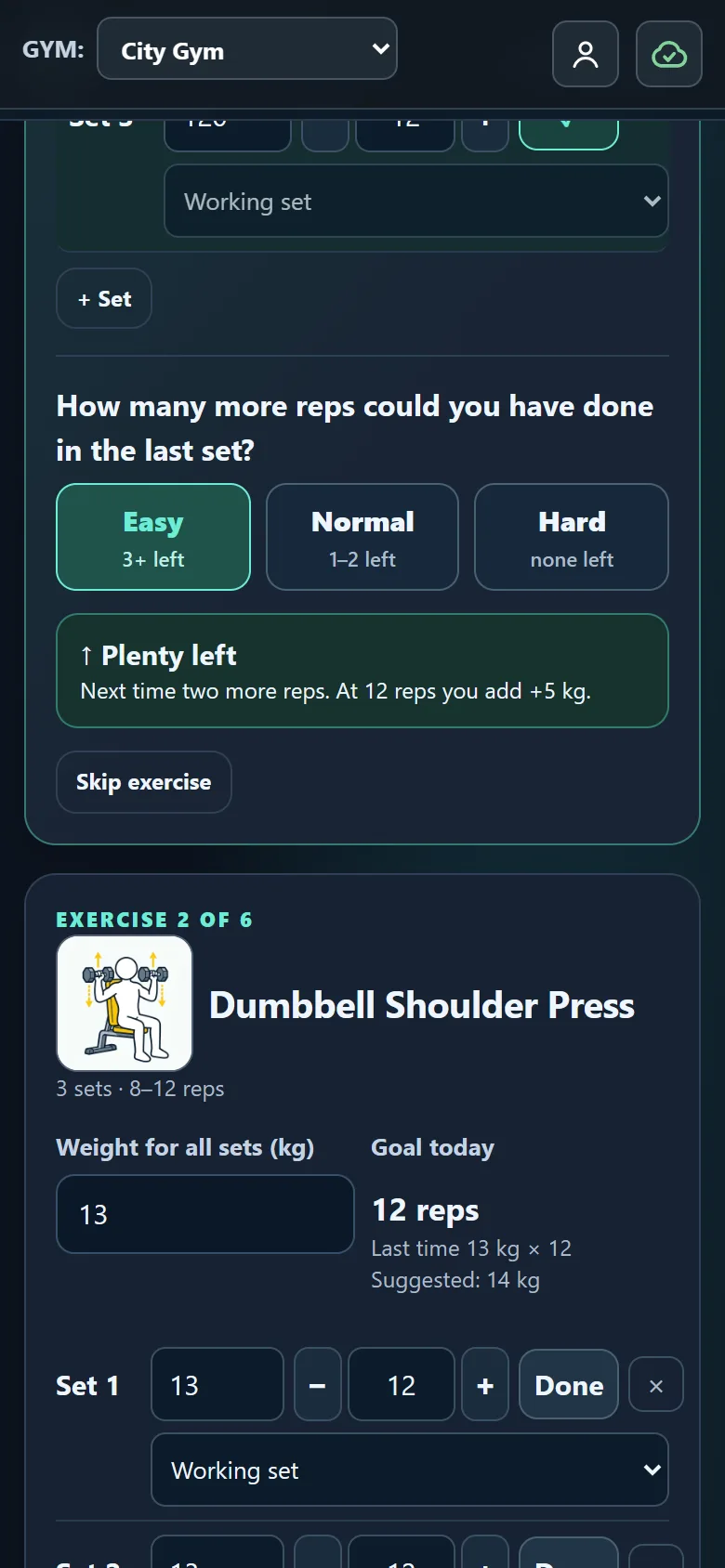
- Below the top of the range (e.g. 10 of 12): the weight stays and the goal goes up by one rep – by two after “easy”. Above the sets you see “Last time 40 kg × 10” and today's goal; adjust reps with − and +.
- Top of the range reached (first set at the top, the others at most one below): next time the app suggests more weight (by the machine's increment), and the goal starts again at the bottom of the range.
- hard: weight and goal stay. Two “hard” sessions in a row below the bottom of the range: the app suggests one step less.
- After more than three weeks off, the app suggests about 10% less weight to restart.
Saving the workout
At the bottom you can enter the actual duration if you like (otherwise the app measures the time itself) and save with “Save session to log”. New personal bests, reached goals and milestones are shown right when you save. “Discard workout & plan again” cancels without saving.
Machines
Under Exercises you find all machines of your gym with pictogram, current weight, sets and reps and the app's recommendation.
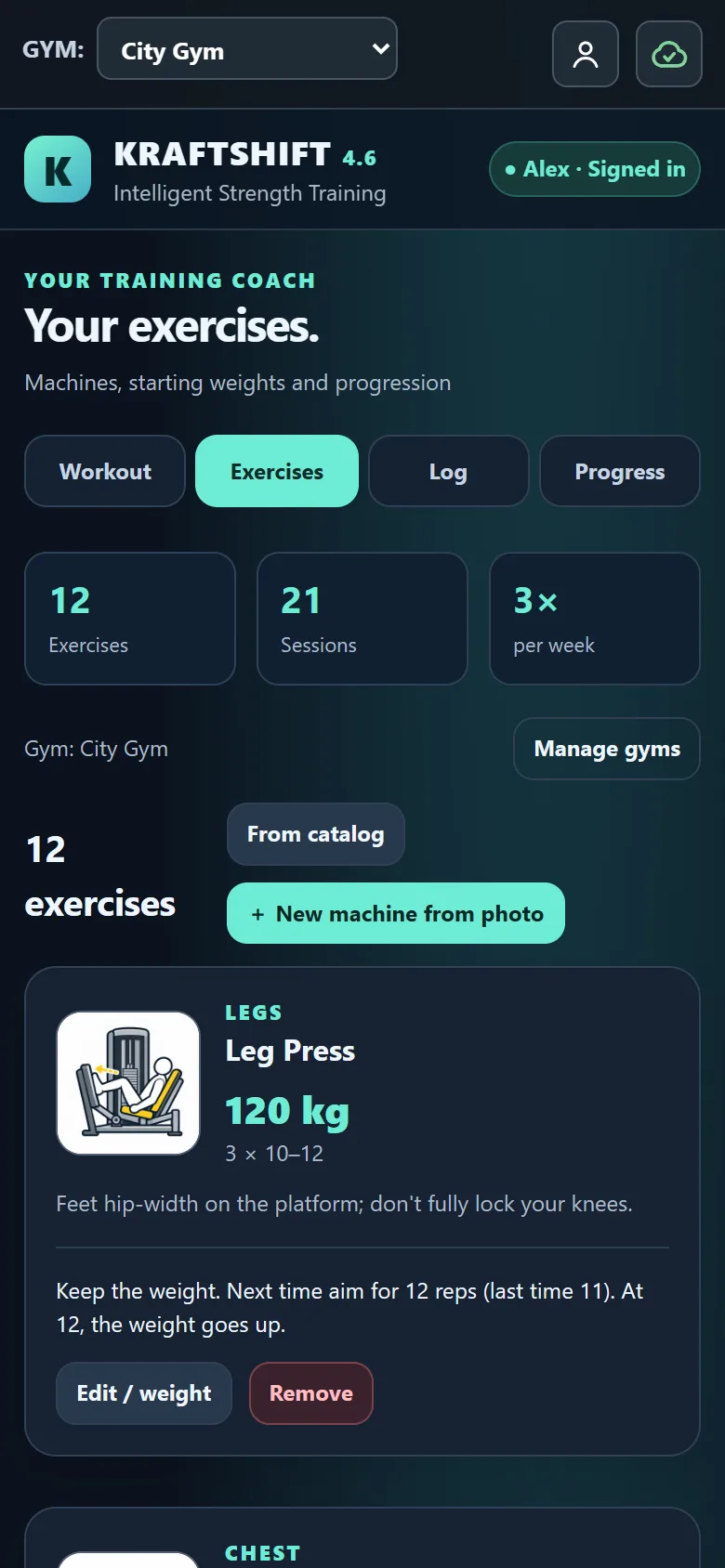
New machine from a photo
Tap “New machine from photo” and take a picture of the instruction sign on the machine. KRAFTSHIFT reads the machine name, muscle group and notes and creates a pictogram in a consistent style. If the app recognises a machine from the catalog, it asks “Is it one of these machines?” – “Yes” takes over the checked catalog details.
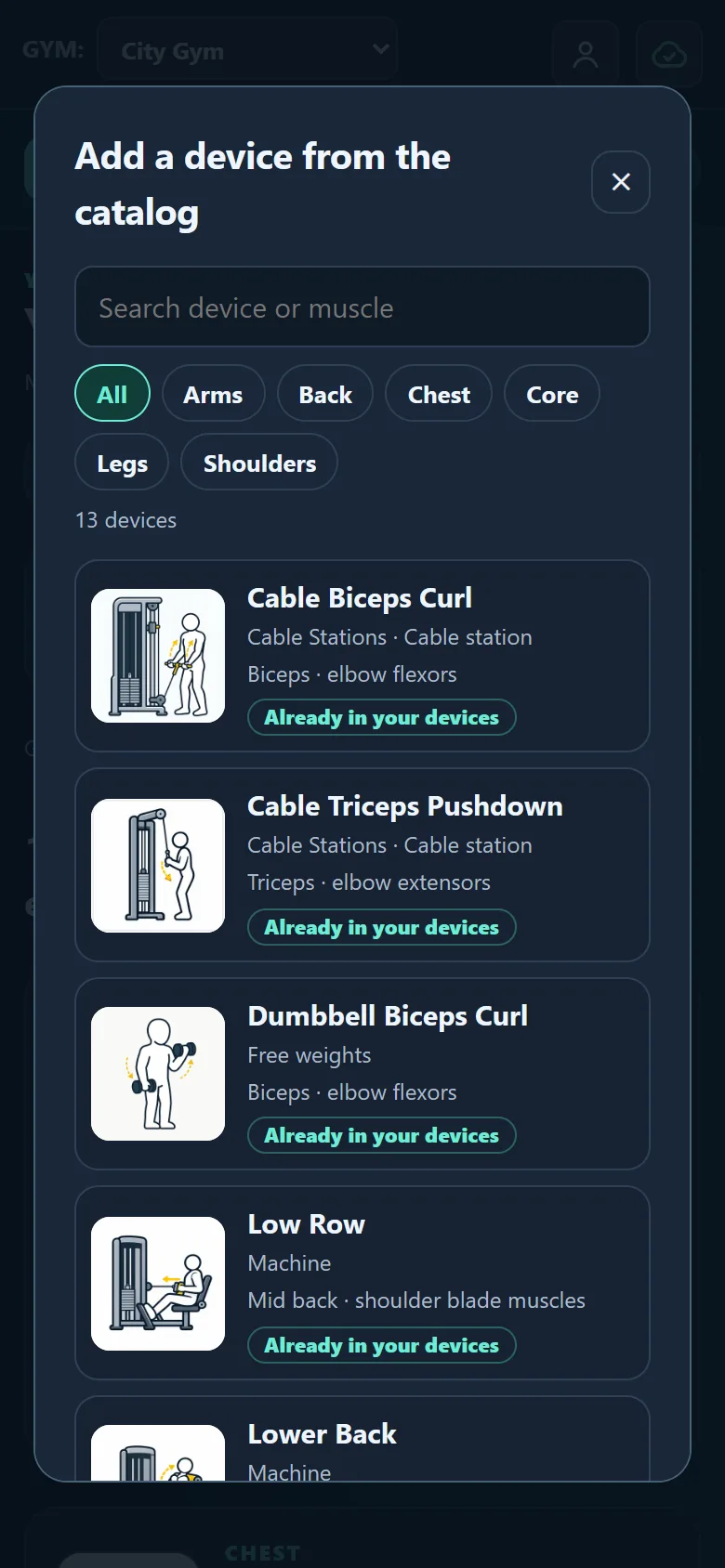
Choosing from the catalog
“From catalog” lets you search the KRAFTSHIFT machine catalog by name or muscle group and filter by category. One tap adds the machine with pictogram, muscle groups and notes; you enter the starting weight yourself.
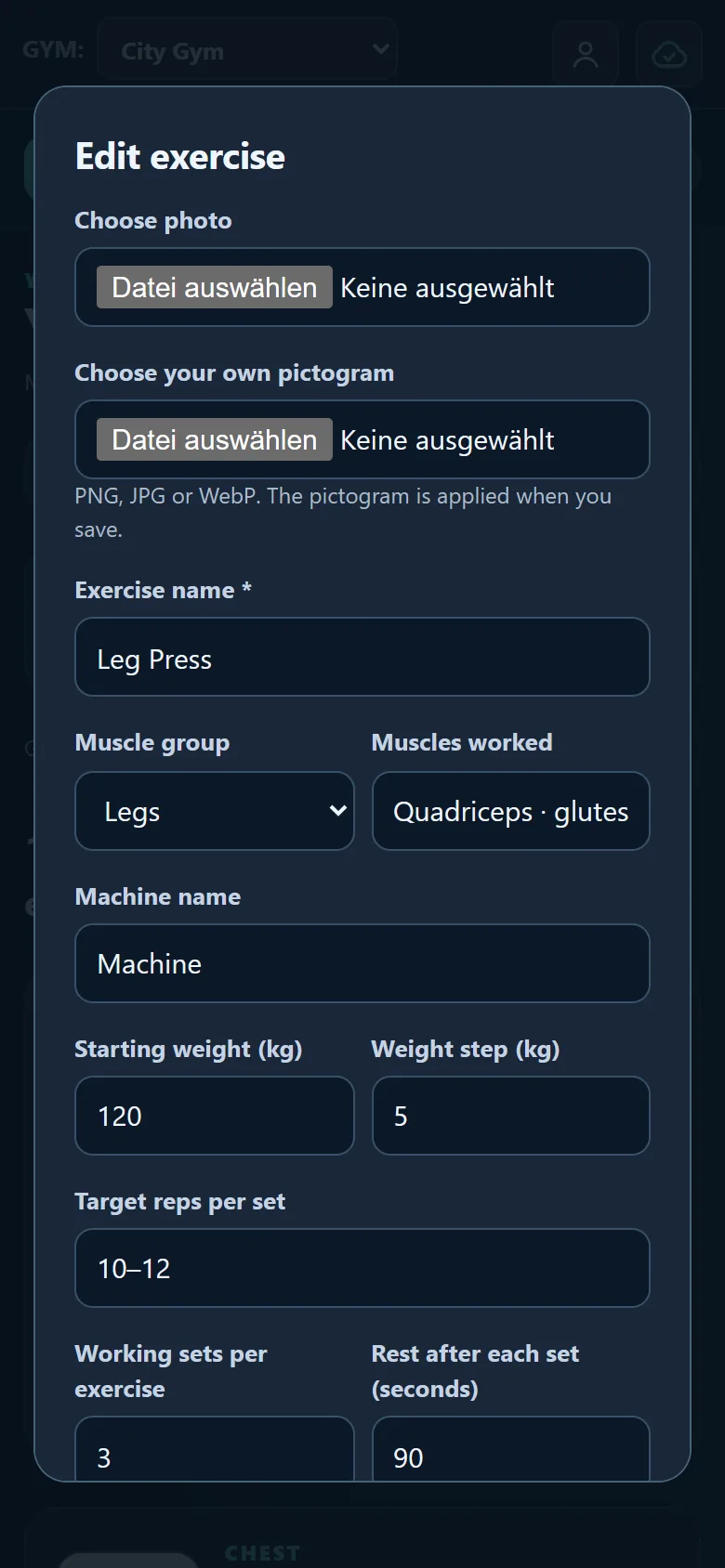
Editing a machine
In the form you set name, muscle group, starting weight, increment, target reps, working sets and rest. The name matches the name on the machine's sign so you can find it at the gym.
Several gyms
If you train in several gyms (for example “My gym”, “Holiday”, “Home”), choose the gym in the bar at the top. Each gym has its own machines with their own weights; the planner and the machine list always show the active gym. “Add another gym” (last entry in the list) adds a new one. Log and progress show all gyms together.
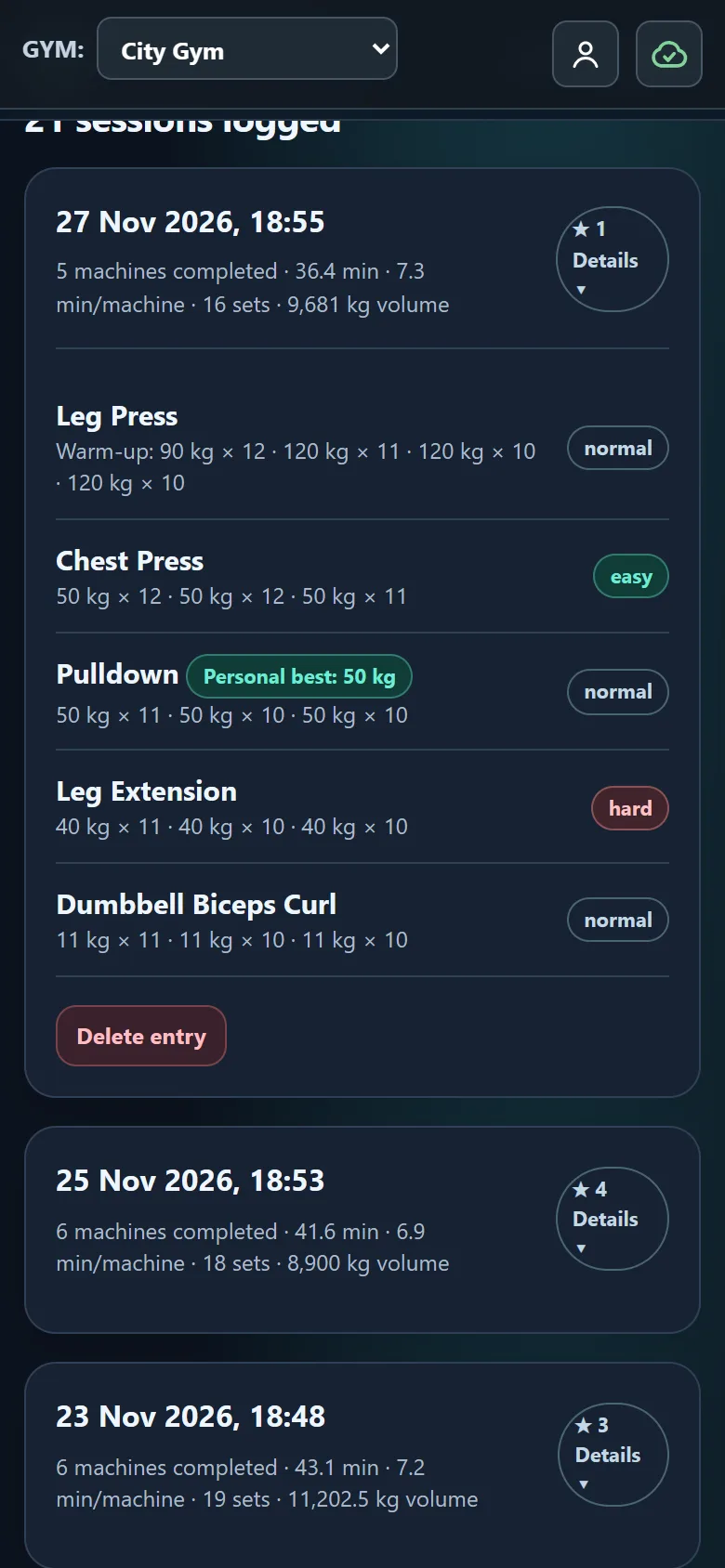
Log
The log lists every saved workout with date, duration, number of machines and sets and the total weight moved. Tap “Details” to see every set and the rating. Workouts with a new personal best carry a star, workouts of a deload week are marked “Deload”.
Progress
Under Progress you find:
- Body weight: enter measurements and see the trend. The app asks once for your consent, because body data is specially protected.
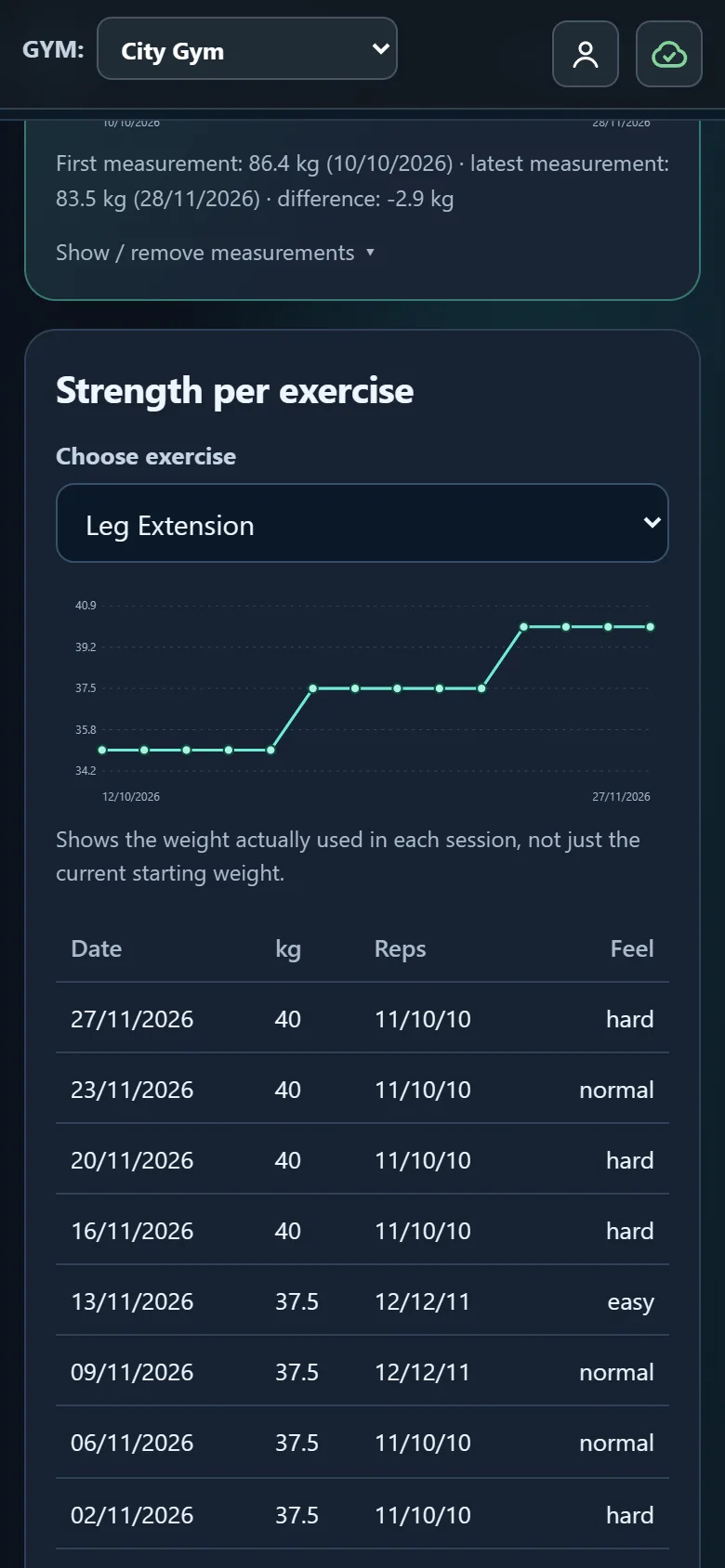
- Strength per exercise: the weight you actually used per workout as a chart and table with reps and rating.
- Time per machine: how long you need per machine – the basis for the time budget.
- Backup: export all training data as a file or import it again.
Analysis
Open the analysis via the person icon → Analysis. It is meant for everyone who wants to dig deeper.
Your goals
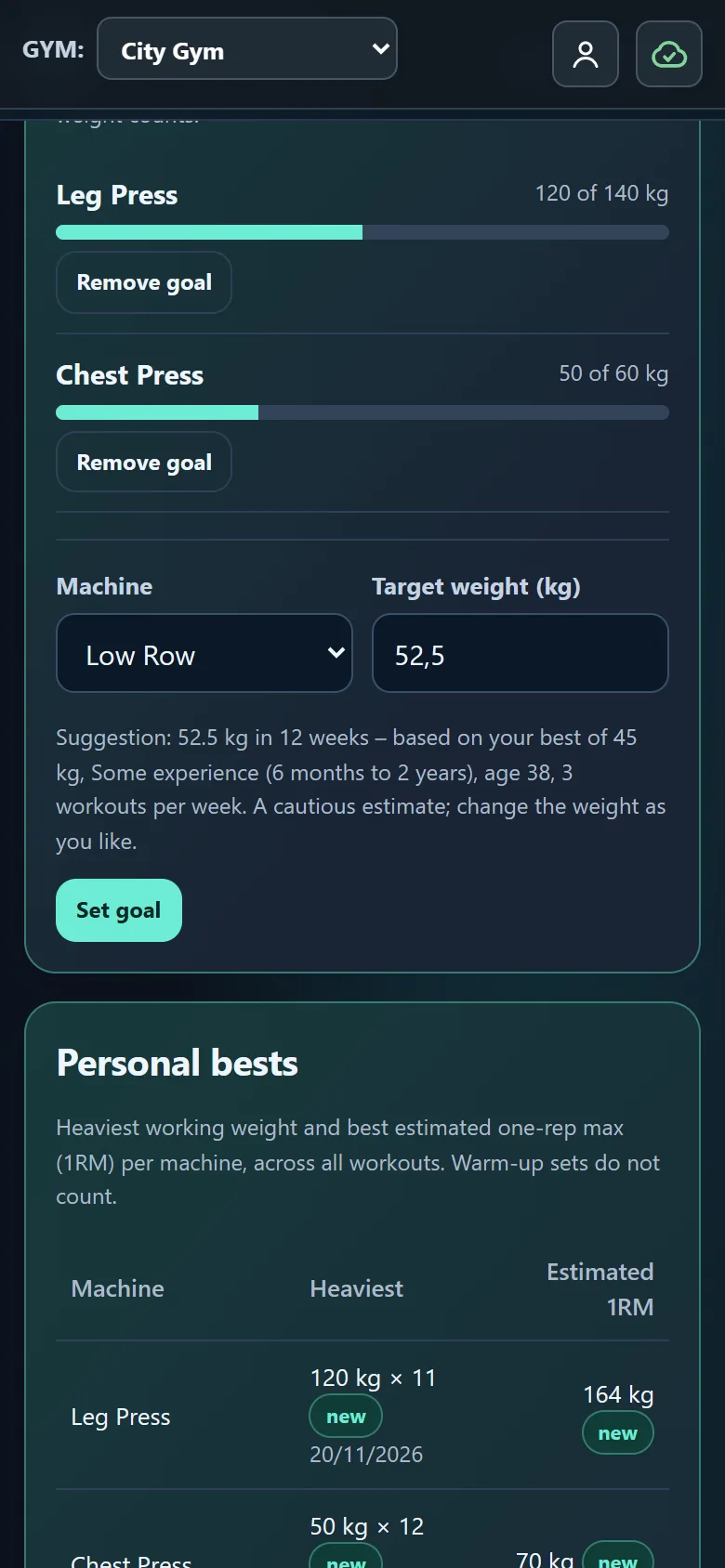
Set a target weight for a machine. KRAFTSHIFT suggests a realistic goal for the next 12 weeks – based on your best, your experience, your age and your training days. The bar shows the way from your first workout to the goal.
Personal bests and one-rep max
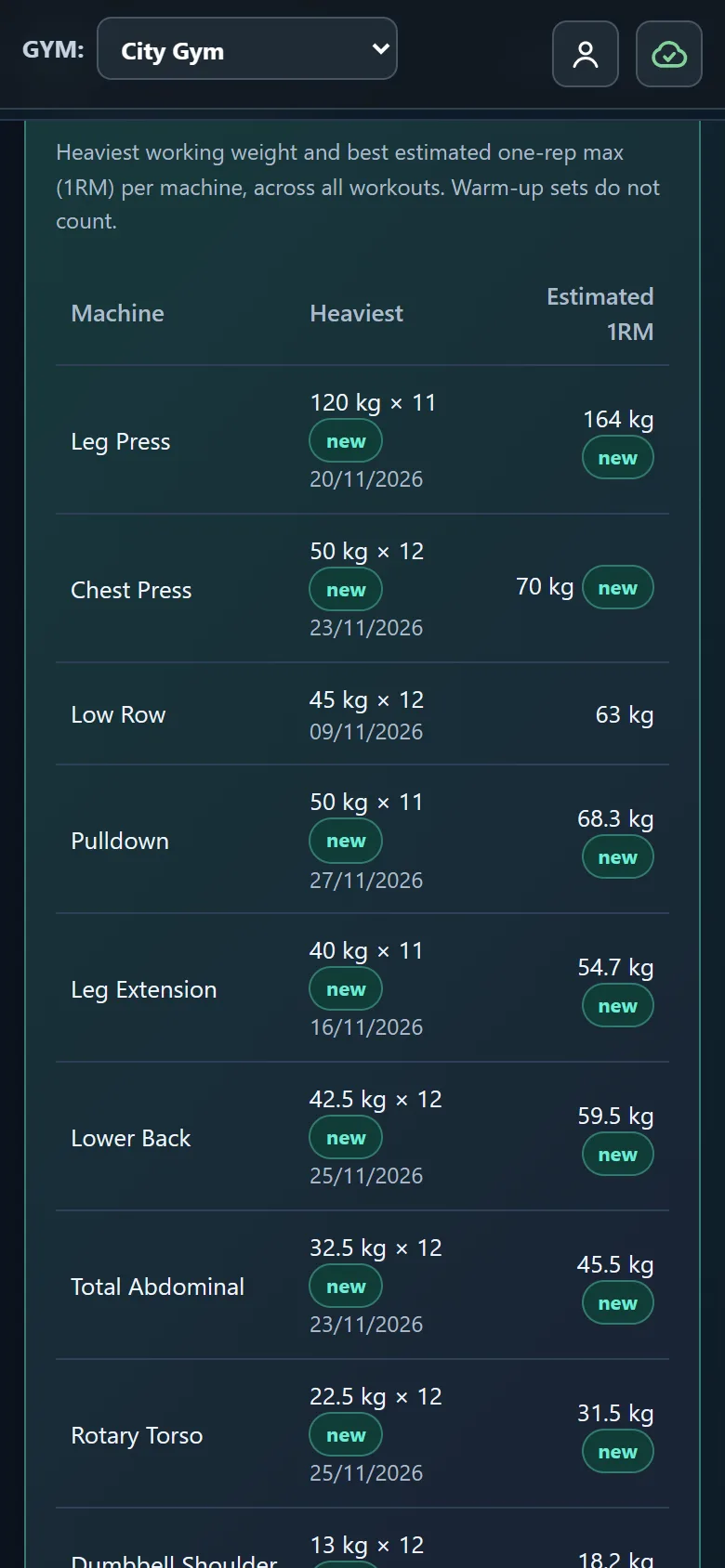
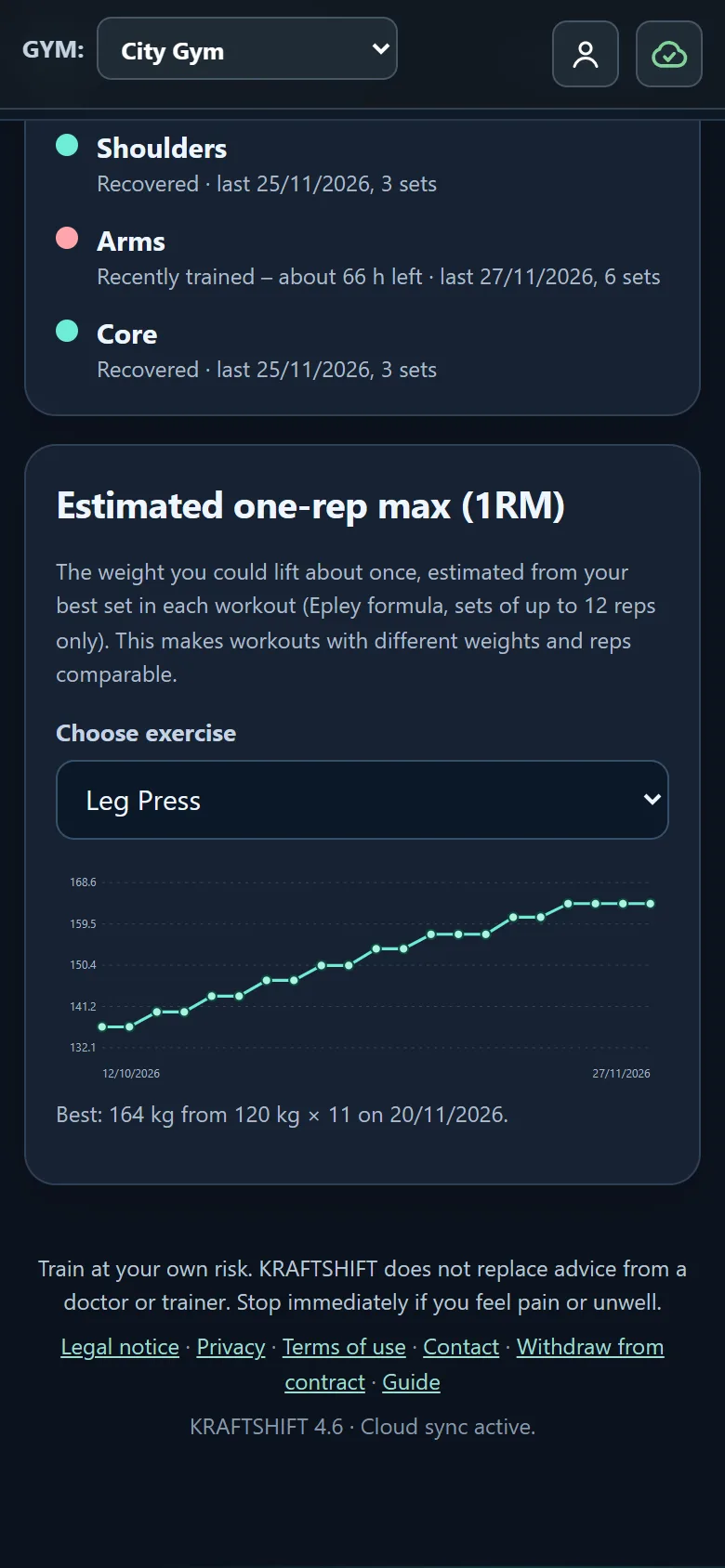
For each machine you see the heaviest working weight and the estimated one-rep max (1RM) – the weight you could lift about once. It is calculated from your best set per workout (sets of up to 12 reps only) and makes workouts with different weights comparable. “new” marks improvements in the last 14 days.
Milestones
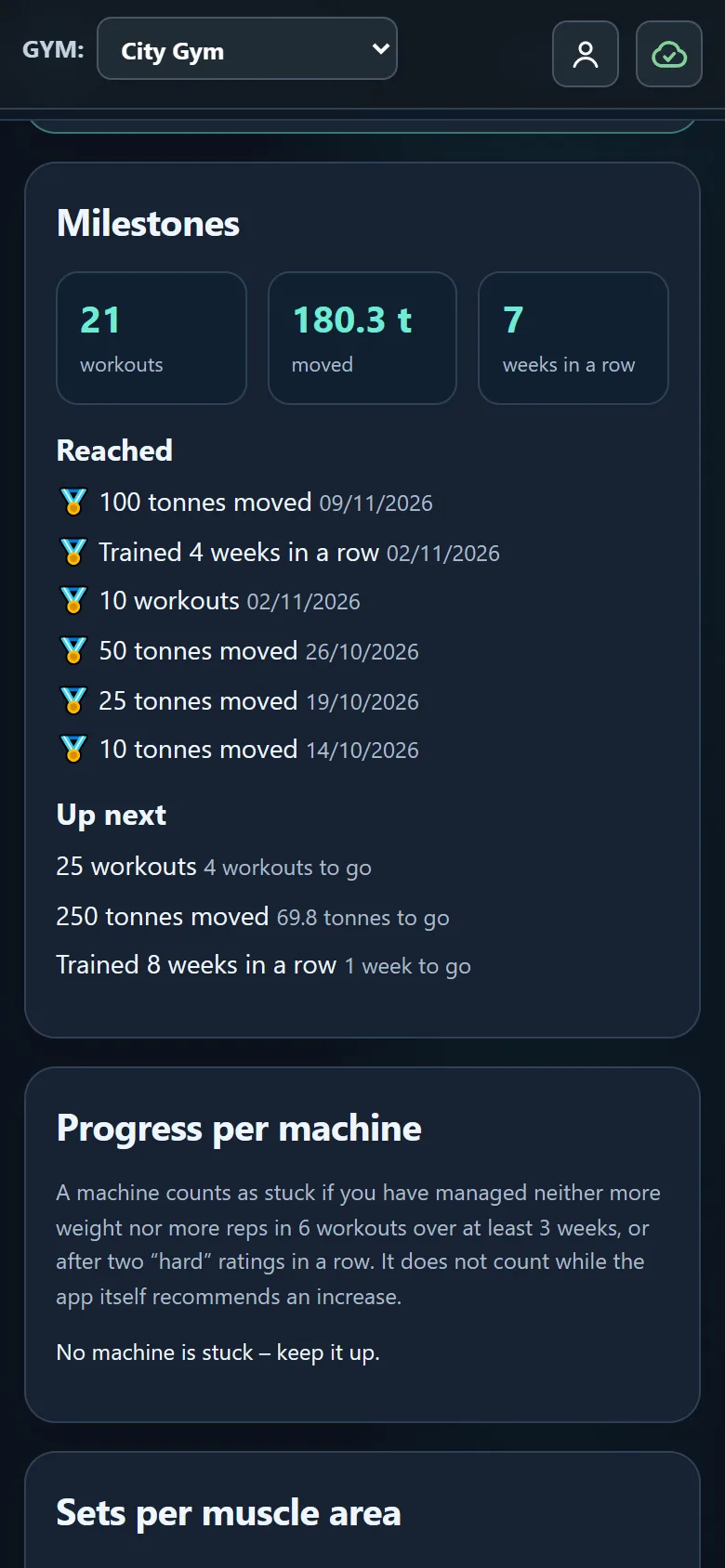
Total workouts, tonnes moved and weeks in a row – with the milestones you have reached and the next ones.
Sets per muscle area
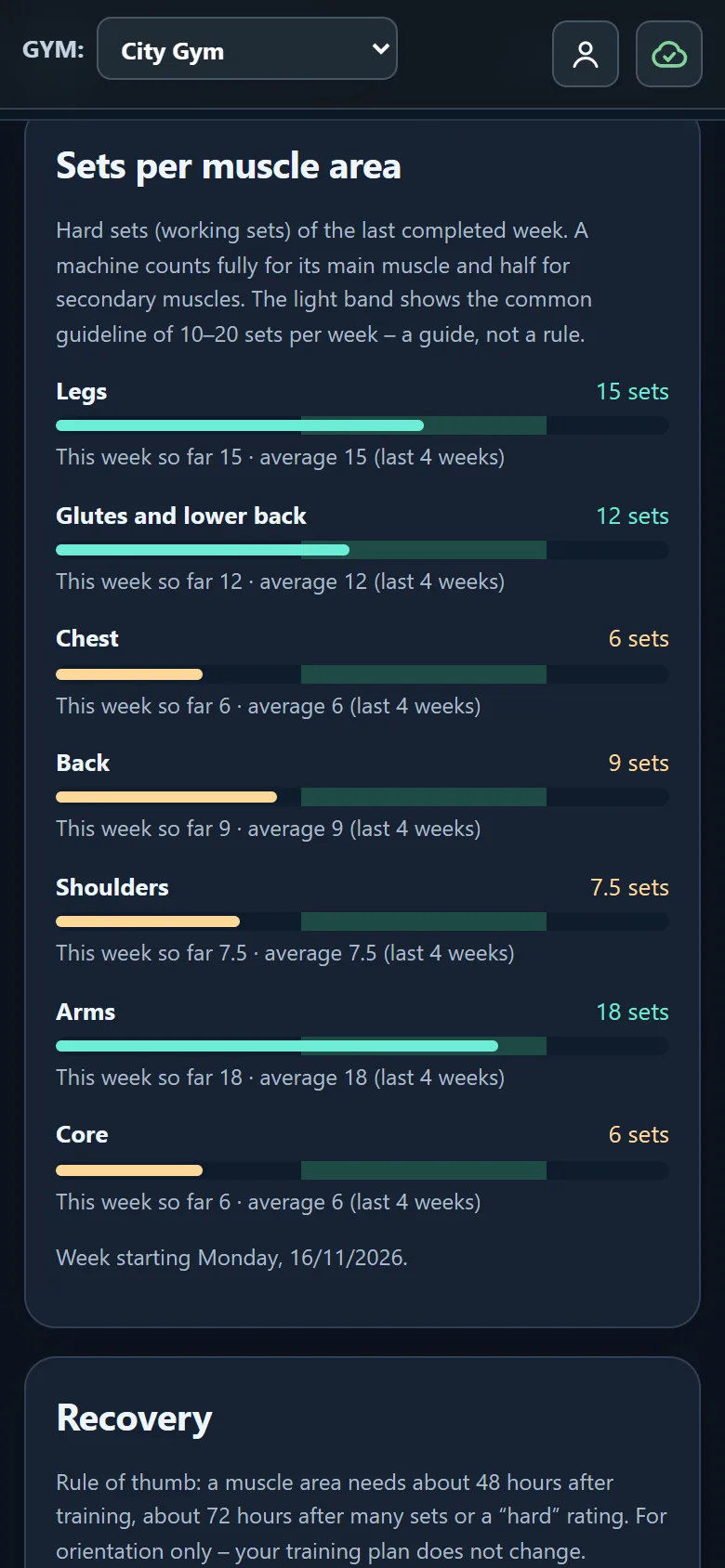
How many hard sets you did last week for legs, glutes and lower back, chest, back, shoulders, arms and core. A machine counts fully for its main muscle and half for secondary muscles. The light band shows the common guideline of 10–20 sets per week.
Recovery
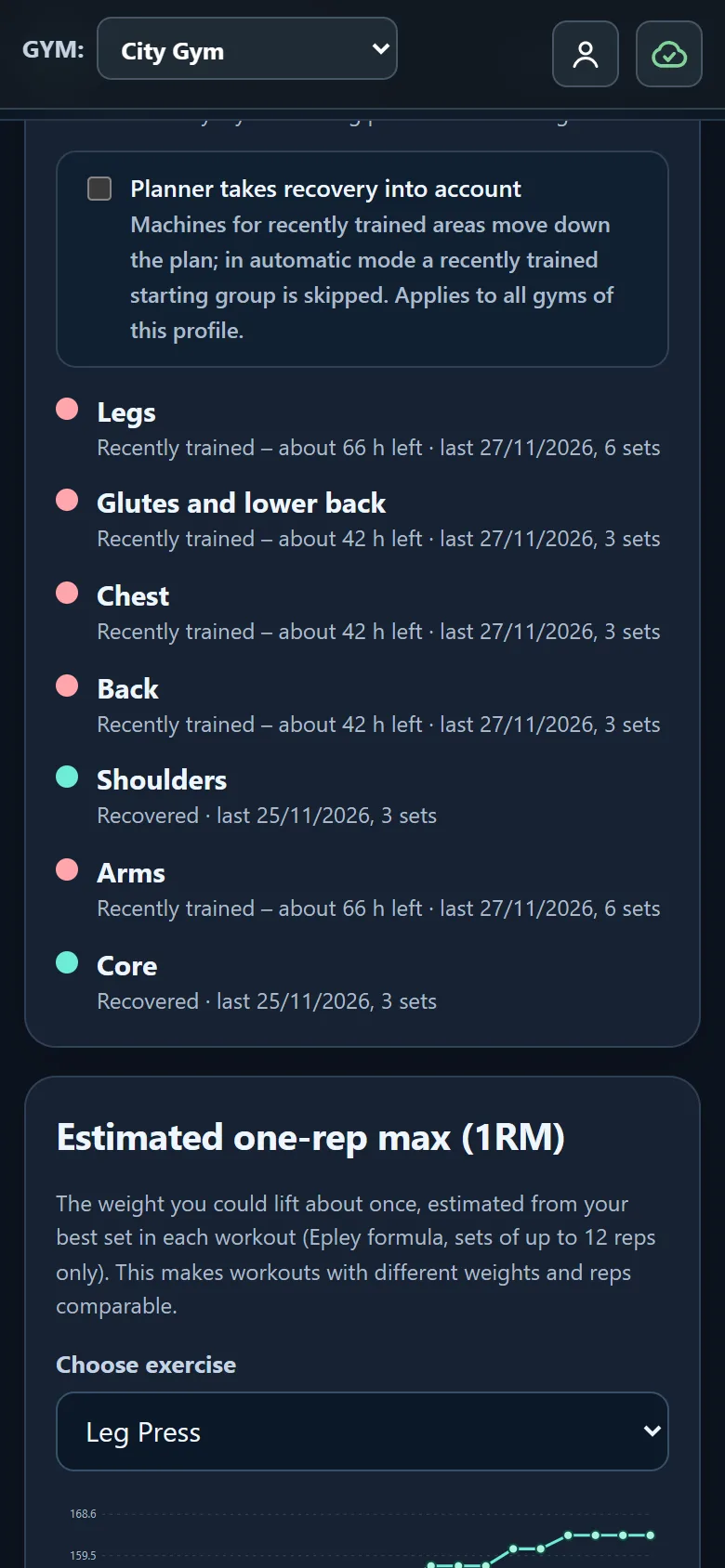
For every muscle area KRAFTSHIFT shows whether it is recovered, almost recovered or recently trained (rule of thumb: 48 hours, 72 hours after many sets or a “hard” rating). With the switch “Planner takes recovery into account”, machines for recently trained areas move down the plan.
Progress per machine and deload week
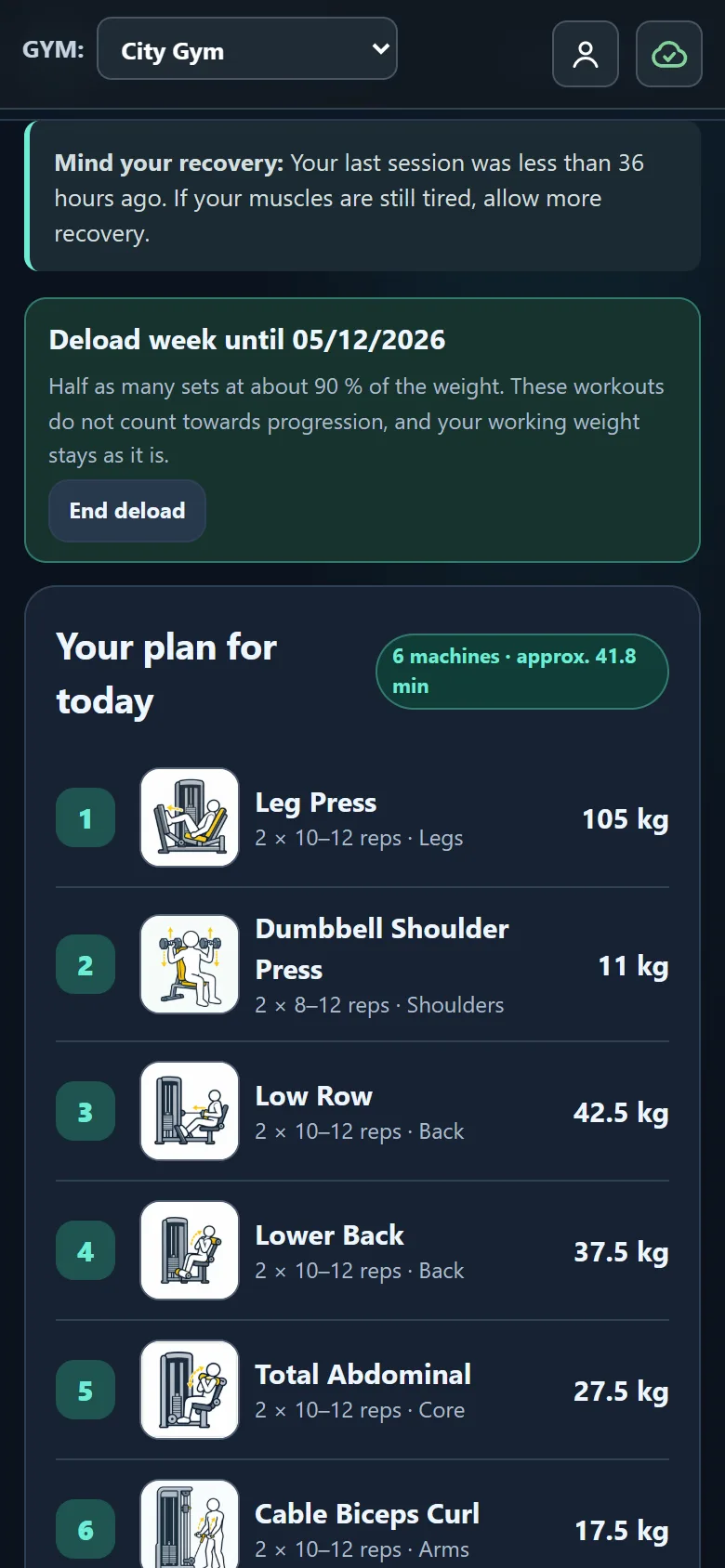
If a machine has not progressed for several weeks, or you have trained for eight weeks without a break, KRAFTSHIFT suggests a deload week. For one week you train with half the sets at about 90 % of the weight. These workouts do not count for progression and your working weight stays as it is. You start and end the deload yourself; “Later” hides the suggestion for a week.
One-rep max over time
The chart shows how your estimated one-rep max develops on a machine.
My account
Via the person icon → My account you manage:
- About you: goals, experience, training days, minutes, year of birth, gender, height – all optional.
- Consents: what you agreed to and when; subscribe to or unsubscribe from marketing emails, withdraw consent for body data.
- Change password and email address: a new address only applies after you confirm the link.
- Export data: all data of your account as a file.
- Delete account: locked immediately, deleted for good after 14 days; until then you can cancel via the link in the email.
Training without a connection
Reception at the gym is often poor. KRAFTSHIFT saves every change on your device first and syncs it with the server as soon as you are back online. The cloud at the top shows the status. Starting without a connection works too once you have opened the app online. Only features that need the server (photo recognition, catalog, account) wait for the connection. If you train on two devices, the latest saved change from the other device wins for the same exercise.
Frequently asked questions
What does KRAFTSHIFT cost?
KRAFTSHIFT is free during the test phase. We will only introduce paid subscriptions if you explicitly agree to them.
I don't know my starting weight.
Pick a cautious weight with which you can safely complete the reps, and rate honestly. Reach the top of the rep range and the app suggests more weight next time – after a few workouts it fits.
Does KRAFTSHIFT work with free weights?
Yes. The catalog already contains dumbbell exercises; more exercises with dumbbells, barbells and the Smith machine are being added step by step. You can create your own exercises at any time via the machine form.
Is my data shared?
No. Your training data belongs to you, is only visible to your account and can be exported and deleted at any time. Details are in the privacy policy.
Important note
KRAFTSHIFT does not replace medical advice or personal training. You train at your own risk; if you have pain or health questions, talk to a doctor.
KRAFTSHIFT · To sign-in · Legal notice · Privacy · Terms of use · Contact · Withdraw from contract · Guide · Deutsch · Español · Français